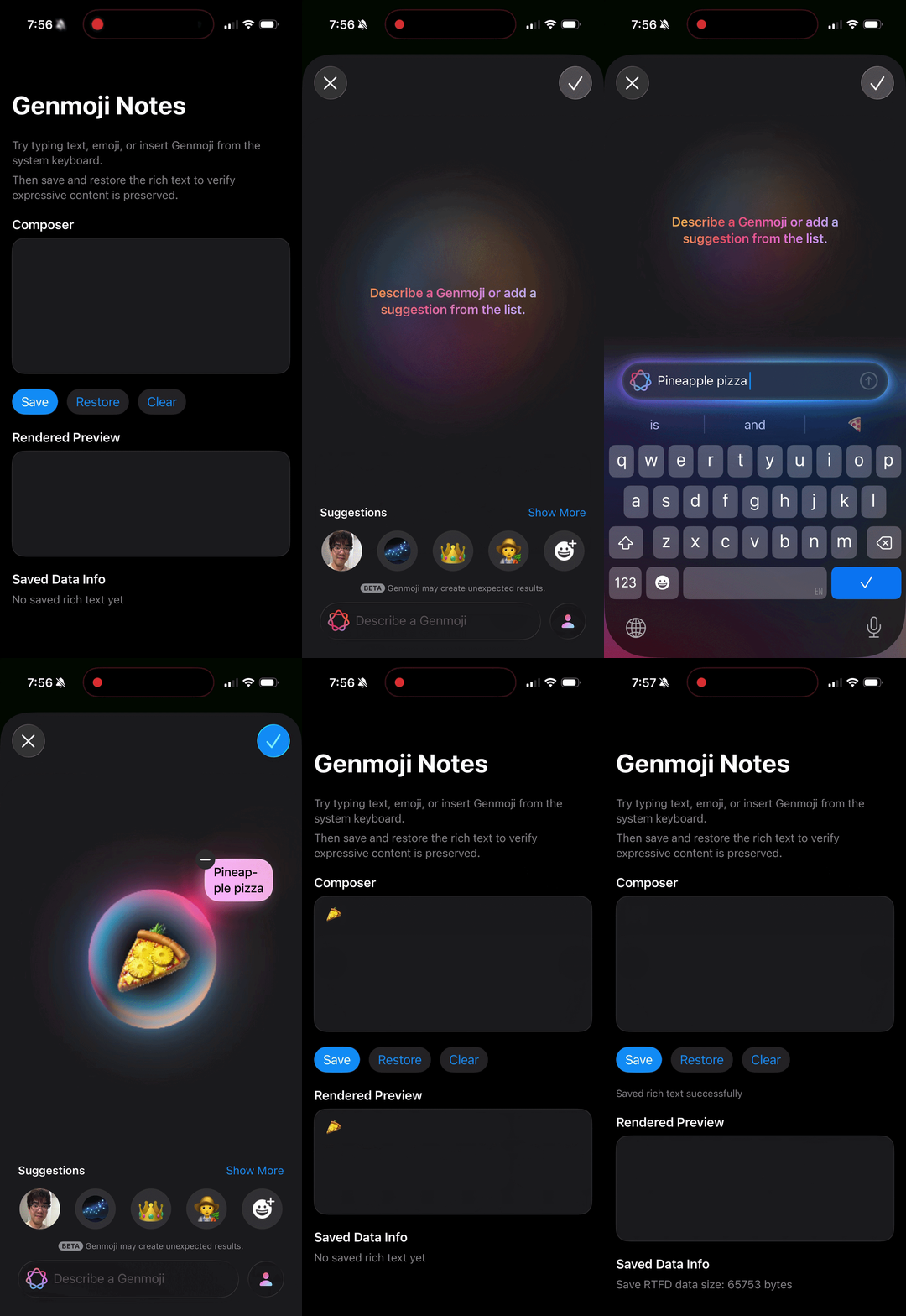
Exploring how to support Genmoji, rich text, and expressive input on iOS using SwiftUI + UIKit bridging.
## Why This Matters
With the introduction of Genmoji in iOS 18, user expression is no longer limited to Unicode emoji. Instead, users can generate custom, image-based emoji directly from text prompts.
But here’s the catch:
Genmoji is not plain text — it’s a rich text glyph .
If your app only stores String, you’ll lose Genmoji data completely.
So the real challenge is:
Supporting Genmoji input
Preserving it through copy/paste
Persisting it via serialization
Restoring it without losing fidelity
This blog walks through building a minimal SwiftUI app that does exactly that.
Key Concept: Genmoji ≠ Emoji Traditional emoji:
Genmoji:
Stored as image glyphs
Embedded in NSAttributedString
Backed by NSAdaptiveImageGlyph
This means:
You must use rich text
String is not enough
Architecture Overview We’ll build a simple app with:
1
2
3
4
5
6
GenmojiNotes
Step 1: Bridging UITextView into SwiftUI SwiftUI’s TextEditor does not support Genmoji.
We must use UITextView.
1
2
3
4
5
6
7
8
9
10
11
12
13
14
15
16
17
18
19
20
21
22
23
24
25
26
27
28
29
30
31
32
33
34
35
36
37
38
39
struct GenmojiTextEditor : UIViewRepresentable {@Binding var attributedText: NSAttributedString func makeCoordinator () -> Coordinator {Coordinator (attributedText: $attributedText )func makeUIView (context : Context ) -> UITextView {let textView = UITextView ()= context.coordinator= true = true if #available (iOS 18.0 , * ) {= true return textViewfunc updateUIView (_ uiView : UITextView , context : Context ) {if uiView.attributedText != attributedText {= attributedTextfinal class Coordinator : NSObject , UITextViewDelegate {@Binding var attributedText: NSAttributedString init (attributedText : Binding <NSAttributedString >) {self ._attributedText = attributedTextfunc textViewDidChange (_ textView : UITextView ) {= textView.attributedText ?? NSAttributedString ()
Important Flags
Property
Why it matters
supportsAdaptiveImageGlyphEnables Genmoji input
allowsEditingTextAttributesEnables copy/paste + rich editing
Step 2: Persisting Rich Text (RTFD) To preserve Genmoji, we must serialize the attributed string.
1
2
3
4
5
6
func serialize (text : NSAttributedString ) throws -> Data {try text.data(NSRange (location: 0 , length: text.length),
Why RTFD? Because it:
Stores images + metadata
Preserves Genmoji glyphs
Is supported by UIKit
Step 3: Restoring Content 1 2 3 4 5 6 7 func deserialize (data : Data ) throws -> NSAttributedString {try NSAttributedString (nil
Step 4: ViewModel Keep logic out of views.
1 2 3 4 5 6 7 8 9 10 11 12 13 14 15 16 17 @MainActor final class GenmojiViewModel : ObservableObject {@Published var inputText: NSAttributedString = NSAttributedString ()@Published var previewText: NSAttributedString = NSAttributedString ()private var savedData: Data ?func save () {= try? serialize(text: inputText)func restore () {if let data = savedData {= try? deserialize(data: data) ?? NSAttributedString ()
Step 5: Preview UI Display attributed text with another UITextView:
1
2
3
4
5
6
7
8
9
10
11
12
13
struct GenmojiTextPreview : UIViewRepresentable {let attributedText: NSAttributedString func makeUIView (context : Context ) -> UITextView {let view = UITextView ()= false return viewfunc updateUIView (_ uiView : UITextView , context : Context ) {= attributedText
Final Thoughts Genmoji isn’t just a new feature — it represents a shift:
From text-based communication → to expressive, adaptive visual language
As iOS developers, this means:
Thinking beyond strings
Designing for rich content
Treating text as a rendering system , not just data
Store text as NSAttributedString
Serialize with RTFD
Restore via NSAttributedString(data:)
If you’re building for modern iOS, this is no longer optional — it’s the future of user expression.